Demo eNSP Lab Solutions

Task 1

Configure the hostname of routers. Set an idle timeout of 30’000s for the console connection.

<Huawei>system-view
Enter system view, return user view with Ctrl+Z.
[Huawei]sysname R1
[R1]
[R1]user-interface console 0
[R1-ui-console0]idle-timeout 30000

<Huawei> system-view
Enter system view, return user view with Ctrl+Z.
[Huawei]sysname R2
[R2]
[R2]user-interface console 0
[R2-ui-console0]idle-timeout 30000

<Huawei> system-view
Enter system view, return user view with Ctrl+Z.
[Huawei]sysname R3
[R3]
[R3]user-interface console 0
[R3-ui-console0]idle-timeout 30000

Note: The idle timeout is useful in the lab that you don’t need to login again if you haven’t made any changes for some time.
Task 2

Configure all IP addresses according to the topology. The last octet of the IP address is the number of the router (e.g. IP address of Lo0 on R2 is 10.0.2.2)

[R1]interface g0/0/0
[R1-GigabitEthernet0/0/0]ip address 10.0.12.1 255.255.255.0
[R1]interface loopback 0
[R1-LoopBack0]ip address 10.0.1.1 24

[R2]interface g0/0/0
[R2-GigabitEthernet0/0/0]ip address 10.0.12.2 255.255.255.0
[R2]interface g0/0/1
[R2-GigabitEthernet0/0/1]ip address 10.0.23.2 255.255.255.0
[R2]interface loopback 0
[R2-LoopBack0]ip address 10.0.2.2 24

[R3]interface g0/0/0
[R3-GigabitEthernet0/0/0]ip address 10.0.23.3 255.255.255.0
[R3]interface loopback 0
[R3-LoopBack0]ip address 10.0.3.3 24

Note: You can either write the subnet mask or number of subnet mask bits behind the IP address.
Task 3

Test the connectivity between the routers with ping.

[R1]ping 10.0.12.2
PING 10.0.12.2: 56 data bytes, press CTRL_C to break
Reply from 10.0.12.2: bytes=56 Sequence=1 ttl=255 time=70 ms
Reply from 10.0.12.2: bytes=56 Sequence=2 ttl=255 time=10 ms
Reply from 10.0.12.2: bytes=56 Sequence=3 ttl=255 time=10 ms
Reply from 10.0.12.2: bytes=56 Sequence=4 ttl=255 time=20 ms
Reply from 10.0.12.2: bytes=56 Sequence=5 ttl=255 time=20 ms

--- 10.0.12.2 ping statistics ---
5 packet(s) transmitted
5 packet(s) received
0.00% packet loss
round-trip min/avg/max = 10/26/70 ms

<R3>ping 10.0.23.2
PING 10.0.23.2: 56 data bytes, press CTRL_C to break
Reply from 10.0.23.2: bytes=56 Sequence=1 ttl=255 time=100 ms
Reply from 10.0.23.2: bytes=56 Sequence=2 ttl=255 time=30 ms
Reply from 10.0.23.2: bytes=56 Sequence=3 ttl=255 time=20 ms
Reply from 10.0.23.2: bytes=56 Sequence=4 ttl=255 time=20 ms
Reply from 10.0.23.2: bytes=56 Sequence=5 ttl=255 time=30 ms

--- 10.0.23.2 ping statistics ---
5 packet(s) transmitted
5 packet(s) received
0.00% packet loss
round-trip min/avg/max = 20/40/100 ms

Note: You can either use ping in user view or system view.
Task 4

Configure OSPF in area 0 between all routers and announce the loopback networks.

[R1]ospf
[R1-ospf-1]area 0
[R1-ospf-1-area-0.0.0.0]network 10.0.1.0 0.0.0.255
[R1-ospf-1-area-0.0.0.0]network 10.0.12.0 0.0.0.255

[R2]ospf
[R2-ospf-1]area 0
[R2-ospf-1-area-0.0.0.0]network 10.0.2.0 0.0.0.255
[R2-ospf-1-area-0.0.0.0]network 10.0.23.0 0.0.0.255
[R2-ospf-1-area-0.0.0.0]network 10.0.12.0 0.0.0.255

[R3]ospf
[R3-ospf-1]area 0
[R3-ospf-1-area-0.0.0.0]network 10.0.3.0 0.0.0.255
[R3-ospf-1-area-0.0.0.0]network 10.0.23.0 0.0.0.255

Task 5

Test the connectivity between all networks.

[R1]ping -a 10.0.1.1 10.0.3.3
PING 10.0.3.3: 56 data bytes, press CTRL_C to break
Reply from 10.0.3.3: bytes=56 Sequence=1 ttl=254 time=40 ms
Reply from 10.0.3.3: bytes=56 Sequence=2 ttl=254 time=20 ms
Reply from 10.0.3.3: bytes=56 Sequence=3 ttl=254 time=20 ms
Reply from 10.0.3.3: bytes=56 Sequence=4 ttl=254 time=20 ms
Reply from 10.0.3.3: bytes=56 Sequence=5 ttl=254 time=40 ms

--- 10.0.3.3 ping statistics ---
5 packet(s) transmitted
5 packet(s) received
0.00% packet loss
round-trip min/avg/max = 20/28/40 ms

[R1]ping -a 10.0.1.1 10.0.2.2
PING 10.0.2.2: 56 data bytes, press CTRL_C to break
Reply from 10.0.2.2: bytes=56 Sequence=1 ttl=255 time=20 ms
Reply from 10.0.2.2: bytes=56 Sequence=2 ttl=255 time=20 ms
Reply from 10.0.2.2: bytes=56 Sequence=3 ttl=255 time=20 ms
Reply from 10.0.2.2: bytes=56 Sequence=4 ttl=255 time=20 ms
Reply from 10.0.2.2: bytes=56 Sequence=5 ttl=255 time=20 ms

--- 10.0.2.2 ping statistics ---
5 packet(s) transmitted
5 packet(s) received
0.00% packet loss
round-trip min/avg/max = 20/20/20 ms

[R3]ping -a 10.0.3.3 10.0.2.2
PING 10.0.2.2: 56 data bytes, press CTRL_C to break
Reply from 10.0.2.2: bytes=56 Sequence=1 ttl=255 time=30 ms
Reply from 10.0.2.2: bytes=56 Sequence=2 ttl=255 time=30 ms
Reply from 10.0.2.2: bytes=56 Sequence=3 ttl=255 time=10 ms
Reply from 10.0.2.2: bytes=56 Sequence=4 ttl=255 time=30 ms
Reply from 10.0.2.2: bytes=56 Sequence=5 ttl=255 time=20 ms

--- 10.0.2.2 ping statistics ---
5 packet(s) transmitted
5 packet(s) received
0.00% packet loss
round-trip min/avg/max = 10/24/30 ms

Task 6

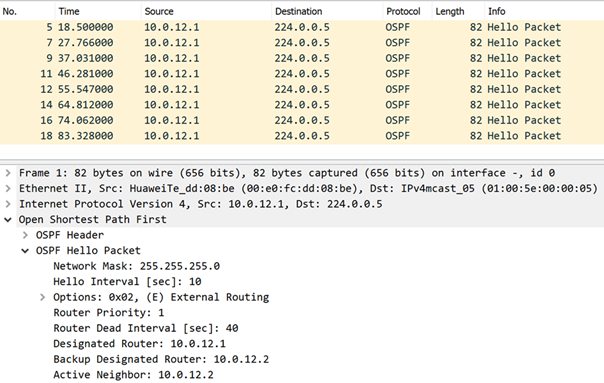
Open Wireshark on R2 GE0/0/0 to see the OSPF hello packets. In which interval are the hello packets received from R1?

Huawei HCIA Demo Lab Solutions Wireshark

OSPF hello packets are send per default every 10s. This is also visible within the OSPF hello packet (Hello Interval [sec]). If the router is not receiving a hello packet within the Router Dead Interval (in this case 40s) the OSPF adjacency will be shut down.

Solutions File

Download and start the Solutions Topo file below to check the final configuration.

Download Huawei HCIA Datacom Demo eNSP Topo File Solutions

Newsletter